When a live event runs smoothly, the audience never sees the hundreds of decisions happening behind-the-scenes. They see the confident speaker, the polished presentations, and the seamless experience. But there is a lot of work and effort needed to make a show happen.
From the tech crew to the producers, to the event staff, to the designers, and much more—there are a lot of moving parts that all need to be in sync with each other to make it work.
Today, we’ll be approaching this from the designer’s perspective, since we are a design agency. From a designer’s side, the risk is rarely one dramatic failure. It is usually a series of small details: the wrong version reaches the show computer, a font doesn’t show correctly, a video stutters and lags, or a speaker’s notes aren’t reading correctly.
The good news is that most presentation problems are preventable, and if they do occur, can be fixed. At Silver Fox, we have been supporting live events and presentations for decades. We know that even the most beautiful deck can have issues on site and today we want to talk about ways to properly prepare yourself to minimize issues that you may experience.
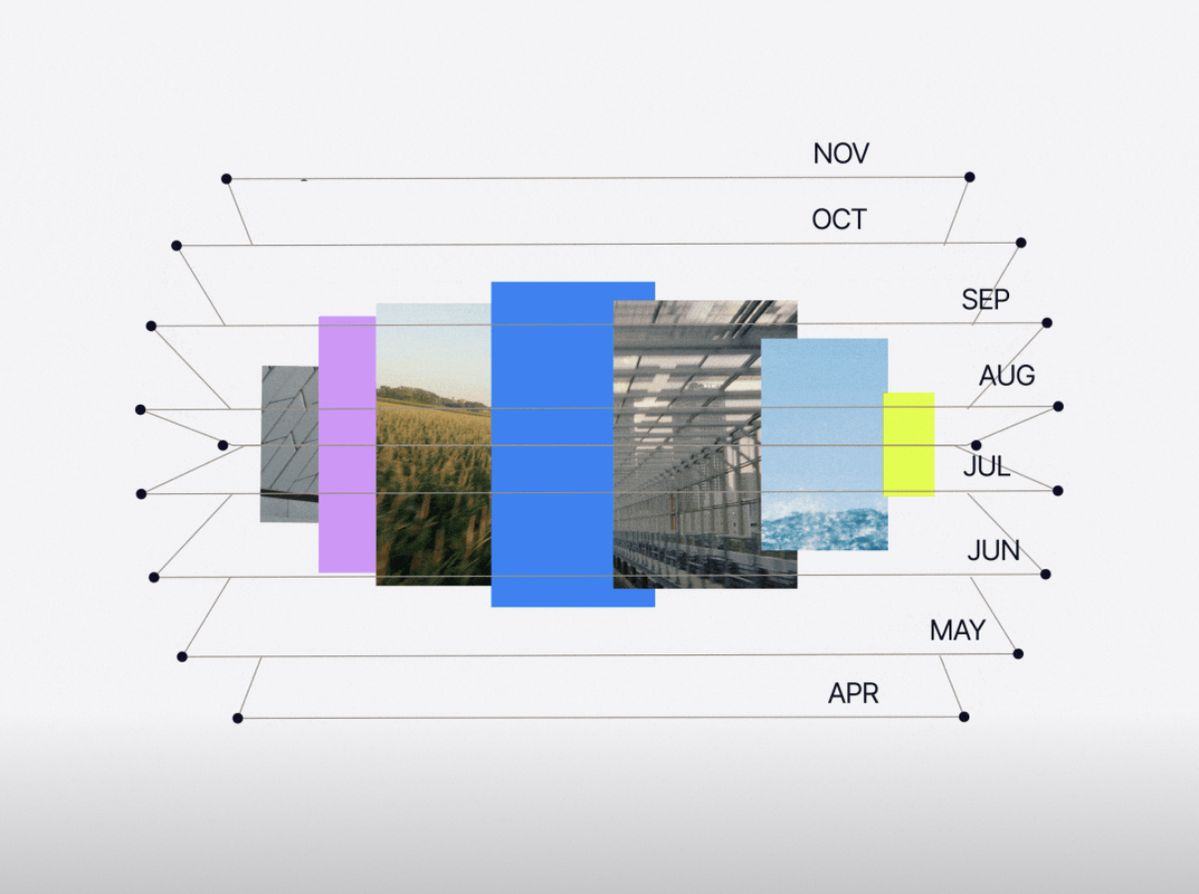
One of the easiest ways to create confusion onsite is to have multiple files labeled “FINAL,” “FINALv02,” “FINALv02v01FINAL.” We’ve all seen it, and onsite is the worst time to figure out which “FINAL” is the final. Establishing a clear file-naming convention is the first step to remedying this issue. There should be no FINAL version if edits can still be made. Here is a graphic that goes into more detail about what constitutes “FINAL.”

Only once the presentation has either left your hands or you can confirm with 100% certainty that all edits are complete should it be marked as final. Until then, any additional edits should result in an updated version number.
Sometimes a presentation that looks perfect on a designer’s computer may look very different when displayed on the big screen. When onsite, click through every slide on the presentation system. Compare it to the approved file and make sure things like fonts, colors, and image quality all align. It’s important to make sure to install any necessary fonts on the computer that runs the presentation.
Whenever possible, avoid relying on external links to media during a live presentation. Relying on internet to work can backfire and it is simpler to download all video and audio. From there, decide with the AV team whether it should play from PowerPoint or through the show system. For most live events, we prefer to let the AV handle our critical media files, like intro videos. But for videos the speaker is directly speaking to during the presentation, we like to leave those in. The best choices depend on the show setup so make that decision early and with the correct people.
All these things should be top of mind when it comes to media. PowerPoint also provides an “Optimize Compatibility” option that can identify potential media issues.
A speaker should be focused on the audience, not wondering whether their notes are visible or who is advancing the next slide. This is why it’s so important to do plenty of dry runs and testing to make sure everything works.
These things are hard to predict in advance so it’s important to test them out once you are onsite.